
This tutorial will show you how to rip a DVD to DVD to MP3, WMA, WAV, M4A, AAC, AC3 and OGG on your PC. After downloading and installing AVCWare DVD Audio Extractor, follow the steps below to accomplish the conversion tasks.
Getting Started
The software provides an easy and quick way to convert DVD files.
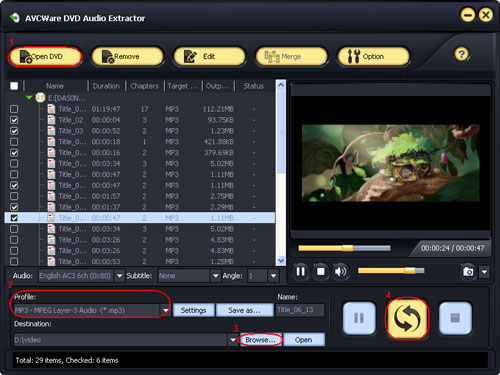
Click Open DVD button, select a DVD in the dialog box that opens, and load it. The Loaded DVD information, such as chapter and title etc. will be showed in the file list.
Or, click Open DVD drop down button, select Open DVD Folder option, select a DVD folder in the file dialog box that opens, and load it.
Click Open DVD drop down button, select Open IFO Files option, select an IFO file in the file dialog box that opens, and load it.
Choose one or more files in the file list, and open Profile drop-down list, then select an output format for selected files.
Tip: To adjust the output settings, click Settings button next to Profile drop-down list, and set the parameters of output format in the Advanced Profile Settings dialog box that opens.
Click Browse button in setting panel, select a destination folder in the dialog box that opens, and click OK.
After finishing the above settings, check the files needed to convert in the file list, and click Rip button at the right bottom to start converting the files. You can view the conversion progress from the progress bar at the bottom of the window.
Tip: You can click Pause button to pause the converting process and Stop button to cancel the process as required.
Trim Video Segment
The software provides video clipping function, which allows you to choose the segments you like from the source, and add them to the file list for converting.
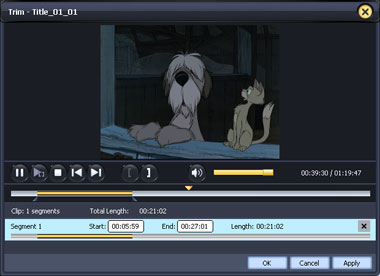
- Choose the title or chapter of the DVD that contains the segment you want, click Edit button on the toolbar and choose Trim option to open Trim window.
- Click Play button to play the selected file.
- When it comes to the very start point you want, click Set Clip Start Point button to set it as start point. And when it comes to the end point you want, click Set Clip End Point button to set it as end point.
Tip: You can drag the slider or enter the time value you want in the Start and End textbox to adjust the position of start and end point. - Then click OK button to return to the main interface.

Video Products
- Total Video Converter
- Video Converter
- Video to iPod Converter
- AVCHD Converter
- Video to iPhone Converter
- MOD Video Converter
- FLV Video Converter
- Video to Zune Converter
- QuickTime Converter
- BlackBerry Video Converter
- Xbox Video Converter
- Wii Video Converter
- iPod touch Video Converter
- iPod nano Video Converter
